![Ivet-Logo_1.png]](https://trainerportal.ivet.edu.au/hs-fs/hubfs/Ivet-Logo_1.png?height=45&name=Ivet-Logo_1.png)
This article is organised into the following sections to help you become familiar with the Text Editor.
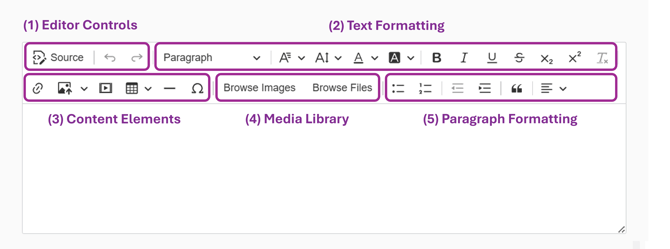
You can use the links below to navigate directly to the section you want to view:
1. Where to Access the Text Editor
As a Trainer, you'll see the Text Editor whenever you're required to enter formatted text within the Trainer Portal.
For example, the Text Editor is available when entering Custom Feedback while marking a student's assessment.
2. How to use the Text Editor Toolbar
The Text Editor provides a range of tools that allow you to create, edit and format your content.
To make the toolbar easier to understand, the available tools have been grouped into 5 categories based on their function. The toolbar includes the following groups:
- Editor Controls
- Text Formatting
- Content Elements
- Media Library
- Paragraph Formatting
The following sections explain each toolbar group and the tools available within them.
Group 1: Editor Controls
The Editor Controls provide quick access to commonly used editor functions, including undoing or redoing changes and viewing the HTML version of your content (Source).

| Tool | Description |
|---|---|
| Source | Displays the HTML source code of your content for advanced editing |
| Undo | Reverses your most recent action |
| Redo | Restores the last action that was undone |
Group 2: Text Formatting
The Text Formatting tools allow you to customise the appearance of your text and emphasise important information.

| Tool | Description |
|---|---|
| Paragraph/Heading Styles | Apply paragraph/heading styles, including Paragraph and Heading styles to organise your content |
| Font Family | Select a font for the selected text from the available font options |
| Font Size | Change the size of selected text using the available font size options |
| Text Color | Change the color of selected text |
| Text Background Color | Highlight selected text by applying a background color |
| Bold | Make selected text bold to emphasise important information |
| Italic | Italicise selected text for emphasis |
| Underline | Underline selected text |
| Strikethrough | Display text with a line through it |
| Subscript | Display selected text below the normal text baseline |
| Superscript | Display selected text above the normal text baseline |
| Remove Format | Remove all formatting from the selected text |
Group 3: Content Element
The Content Element tools allow you to add different types of content to your text.
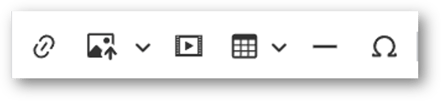
| Tool | Description |
|---|---|
| Link | Insert or edit a hyperlink to a website or online resource |
| Image | Insert an image by uploading it from your computer or using an image URL |
| Media | Insert media into your content using a supported URL |
| Table | Insert a table to organise information into rows and columns |
| Horizontal Line | Insert a horizontal line to visually separate sections of your content |
| Special Characters | Insert symbols and special characters that are not available on a standard keyboard |
Group 4: Media Library
The Media Library tools allow you to browse and insert files and images into your content.
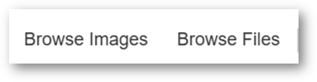
| Tool | Description |
|---|---|
| Browse Images |
Browse previously uploaded images or upload a new image from your computer |
| Browse Files |
Browse previously uploaded files or upload a new file from your computer A variety of file types are supported, including images, Microsoft Office documents, PDF files, etc. |
Note:
- Images uploaded using Browse Images have a maximum file size of approximately 10 MB.
- Files uploaded using Browse Files have a maximum file size of approximately 32 MB.
Group 5: Paragraph Formatting
The Paragraph Formatting tools help you organise and structure your content, making it easier to read and follow.
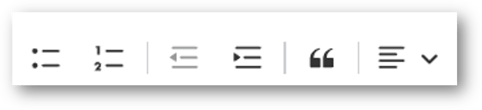
| Tool | Description |
|---|---|
| Bulleted List | Create an unordered list to present related information where the order is not important |
| Numbered List | Create an ordered list to present information in a specific sequence |
| Decrease Indent | Decrease the indentation level of the selected paragraph or list item |
| Increase Indent | Increase the indentation level of the selected paragraph or list item |
| Block Quote | Format the selected paragraph as a block quote to distinguish quoted or highlighted content |
| Text Alignment | Align text to the left, centre, right or justified, depending on the available options |
Tips
- Use headings and lists to organise your content into clear sections.
- Use tables when presenting structured information.
- If you copy content from another source, use Remove Formatting to help maintain consistent formatting.
Note: This documents the trainer/full editor options. The student editor has no Image, Media, Browse Images, or Browse Files buttons.