![Ivet-Logo_1.png]](https://trainerportal.ivet.edu.au/hs-fs/hubfs/Ivet-Logo_1.png?height=45&name=Ivet-Logo_1.png)
As a Trainer, you can request to reset Students' assessments tasks.
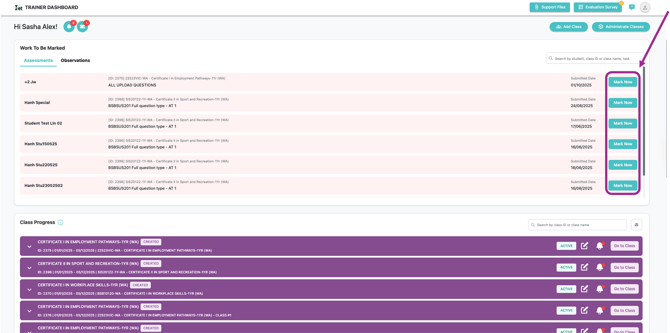
1. Navigating to your Trainer Dashboard, click Mark Now in the Work to be marked - Assessment section.
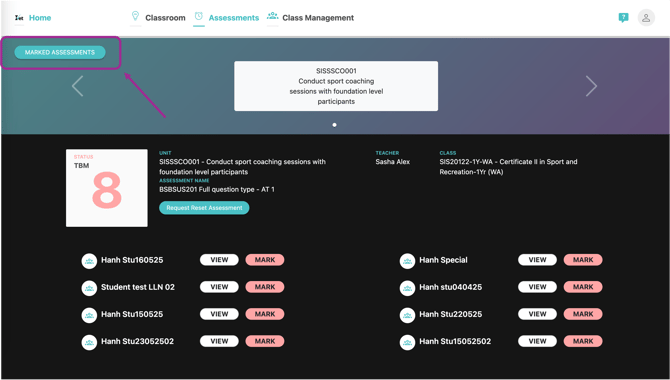
2. Next, you need to access the Student Progress/Marked Assessment page.
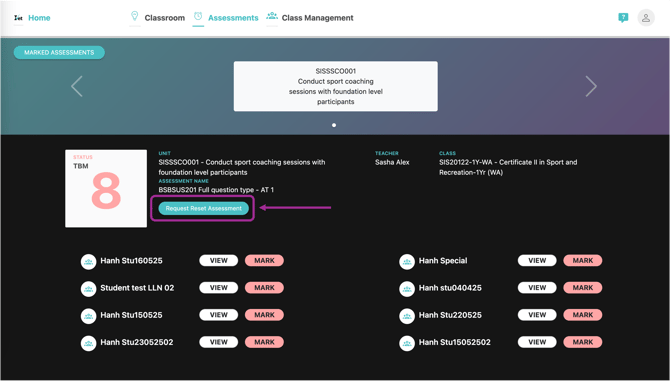
3. To submit a reset request, click on the Request Reset Assessment button.
4. Select the Reset Type that you wish:
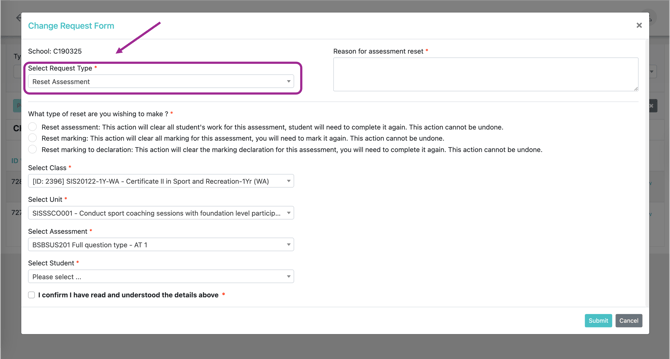
*Note: The drop-down list contains three types of requests:
1. Reset Assessment:
This action will permanently remove all of the student's work associated with the assessment task. The student will be required to complete the task again from the beginning.
2. Reset Marking:
This action will delete and reset all existing marking for the assessment task. You will need to re-mark the student's submission once it is resubmitted.
3. Reset Marking to Declaration:
This action will remove the marking declaration for the assessment. You will be required to complete and submit the declaration again.
5. Verify that you have selected the correct student and task to reset.
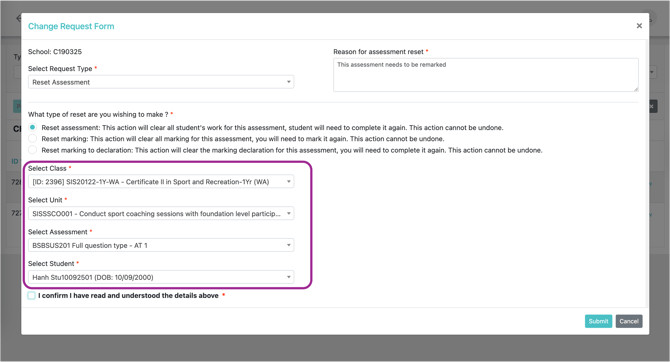
Note: These four sections will be auto-filled, though you can edit each of them, if and as required.
6. Briefly describe the reason for the reset request, tick the declaration box to confirm, and click the Submit button to finalise the request.
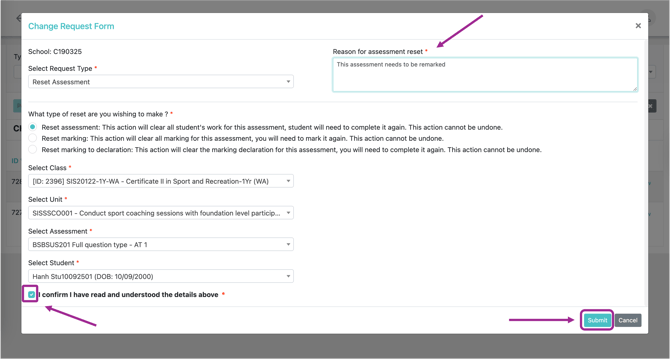
7. Your reset request will automatically be sent to IVET’s Admin team for review and action.
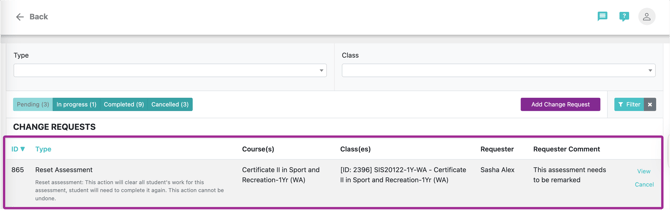
8. For those students whose assessments are being requested to be reset, an indicator will appear on their assessment progress page.

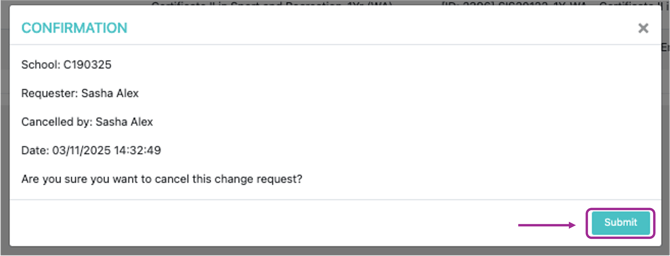
9. If you accidentally select the wrong student/assessment task, or if you simply do not wish to proceed with the reset request, you can click Cancel to withdraw a request while it is still in the Pending Tab, which indicates the IVET Admin team has not yet processed it.
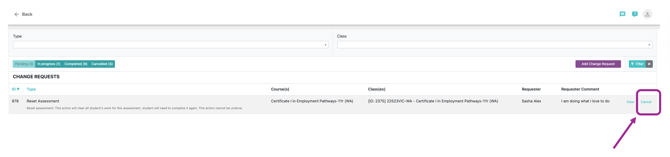
10. Click Submit to officially cancel your request.