![Ivet-Logo_1.png]](https://trainerportal.ivet.edu.au/hs-fs/hubfs/Ivet-Logo_1.png?height=45&name=Ivet-Logo_1.png)
- First, navigate to the Trainer Dashboard as seen below:
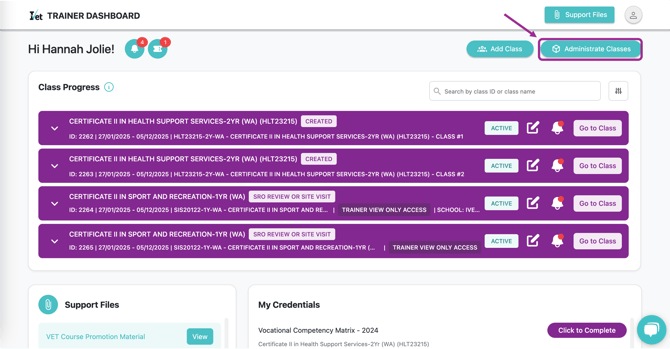
https://myportal.ivetinstitute.com.au/trainers/sign_in - From the dashboard, click on the Administrate Classes button as seen below:
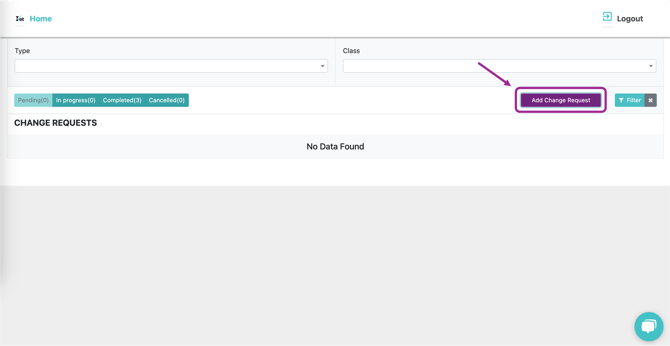
- Then click Add Change Request:
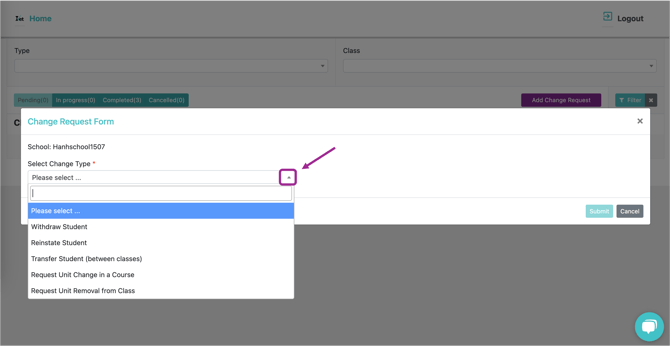
- From the Select Change Type menu, choose the applicable enrolment amendment change you wish to make (Withdraw, Reinstate, Transfer).
- Next, click Select Class to locate and select the class that contains the student that the change request relates to.
For Withdraw Student or Reinstate Student, continue to select the targeted class.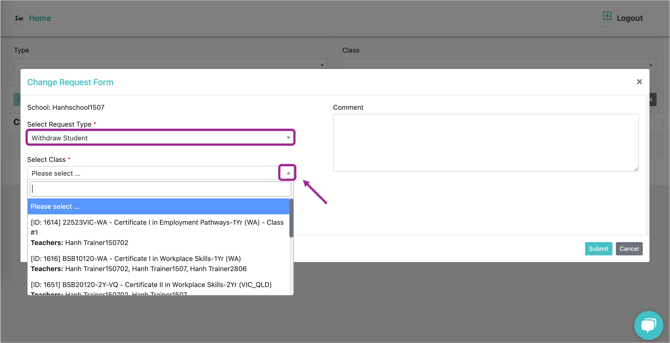
For Transfer Student (between classes), two selections are required - 'Select class to move from' and 'Select class you wish to move student to':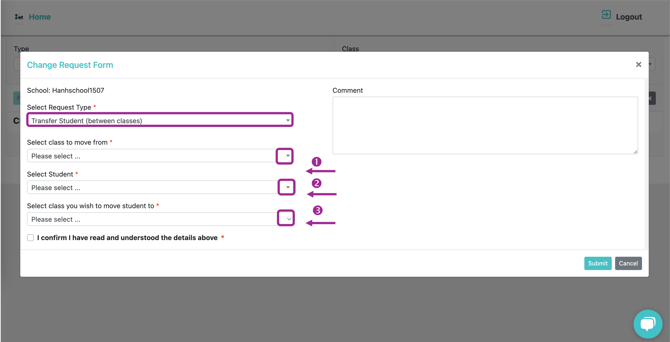
- Then click Select Student to locate and select the targeted student.
- Proceed to make all mandatory selections as prompted, read any resulting warnings, and tick the box to confirm that you wish to proceed.
You can also use the the Comment field to add any applicable notes (optional)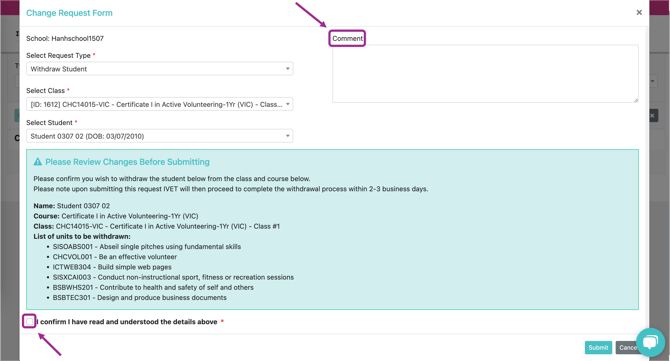
- Lastly, click Submit to finalise the change request, or otherwise, click Cancel.
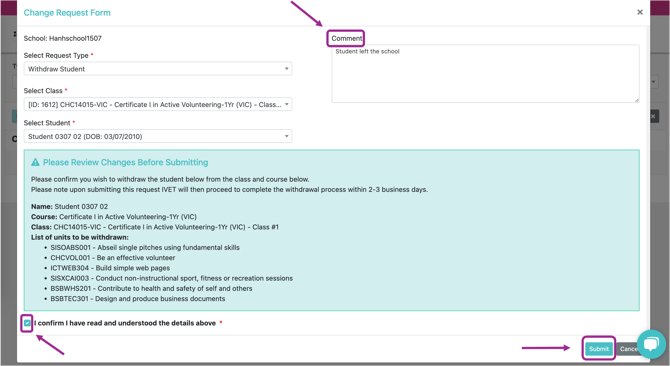
- The request will initially show a pending status as seen below:
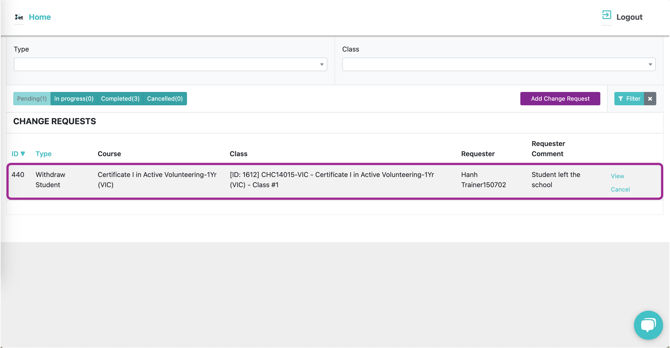
- Whilst still pending, you can cancel a change request as shown below:
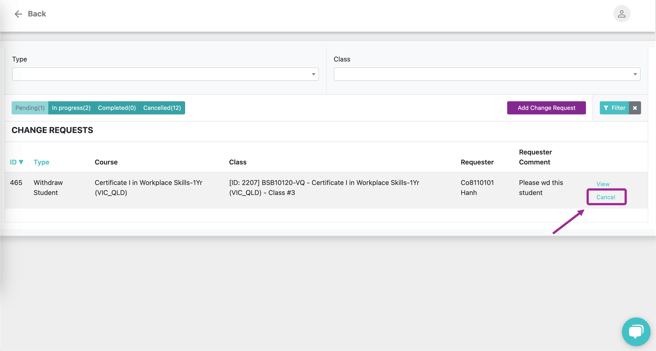
Simply click on Cancel, review the details, and click Submit to confirm.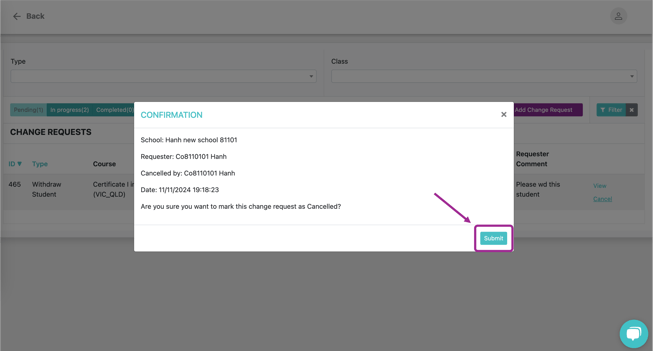
Please note. Once a request has been moved to In Progress, you can no longer cancel it via the change request function. To cancel an in-progress request, please contact your SRO or our Admin team directly.