![Ivet-Logo_1.png]](https://trainerportal.ivet.edu.au/hs-fs/hubfs/Ivet-Logo_1.png?height=45&name=Ivet-Logo_1.png)
Once your Students have successfully completed their course, all results have been finalised, and their USI numbers have been verified as valid, IVET will issue their Certificate within 30 days. When your Students' certificates are available, a notification will be sent to their registered email address, and also to you as their Trainer or Coordinator.
Follow the steps below to view and download your Student Certificates from the Portal.
1. Access the Certificates
Firstly, log in to your account as either Trainer or Coordinator. Then, from your Dashboard, in the Class Progress section, you can either:
-
-
click on the arrow to show class details, then the Go to Student Progress button
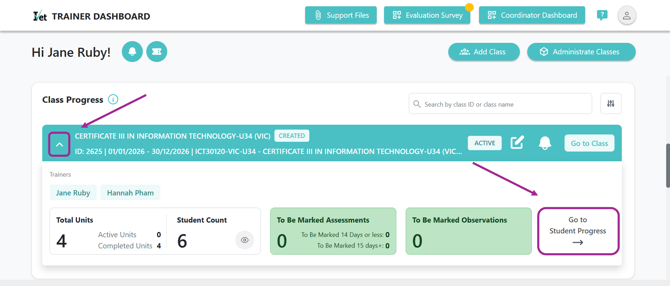
or:
-
Click on the Go to Class button
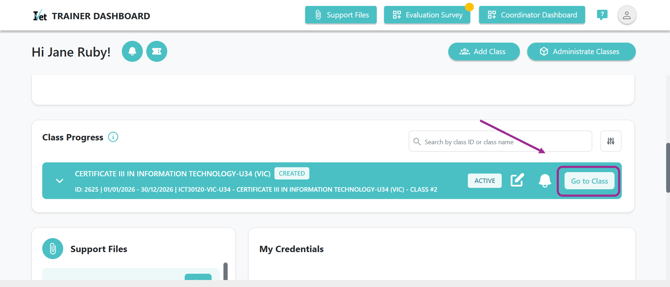
then on the Class Management tab:
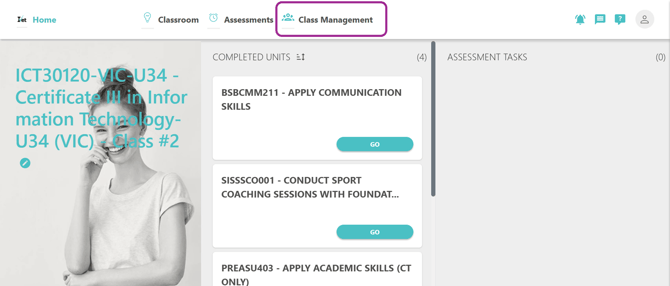
-
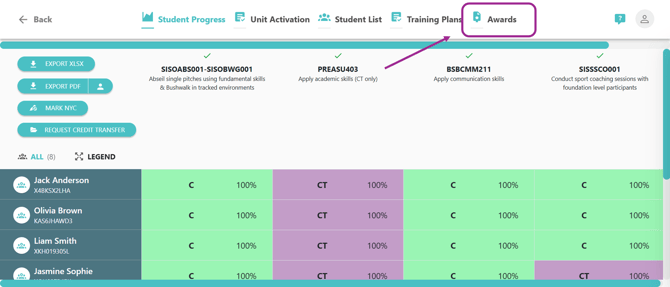
The Portal will then navigate you to the Student Progress page:
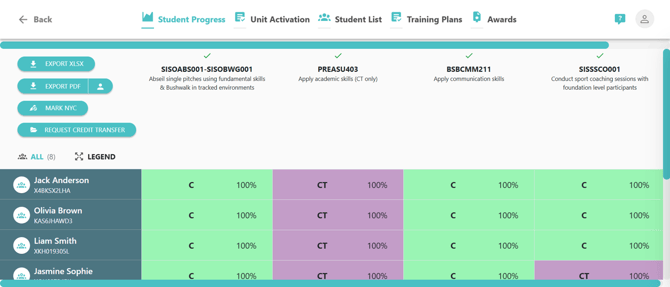
2. View and Download Student Certificates
From the Student Progress page, select the Awards tab as shown below:
The Portal will then navigate you to the Awards page, where you can view and download all available Certificates, Statements of Attainment (SOA), and other issued awards.
Tip: You can hover over the View button to see the award type at a glance.
You can choose to download awards individually or use the bulk download feature for the entire class as follows:
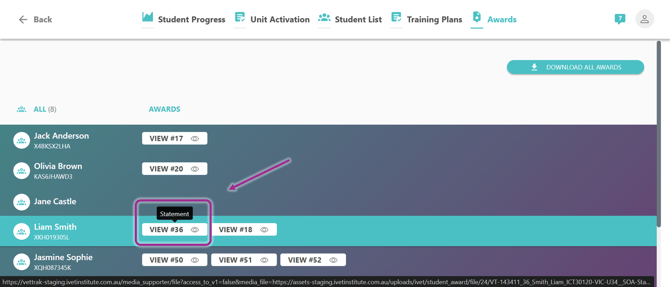
-
-
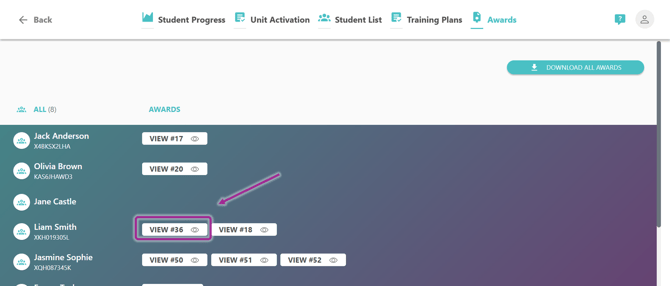
To view and download an award for a specific student, simply click on the corresponding View button,
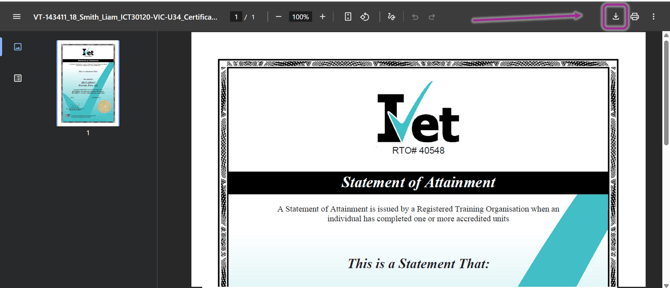
then select the Download icon at the top right corner of the page (as shown below):
- To view and download all awards available for the class, simply click on the Download All Awards button:
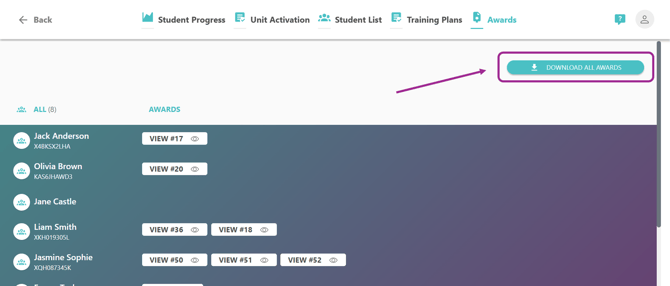
An email will be sent to your registered email address and will include a link to download all certificates in the class. Simply click on the link to download.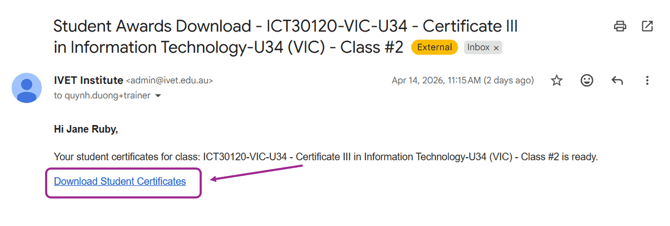
-
3. Notifications:
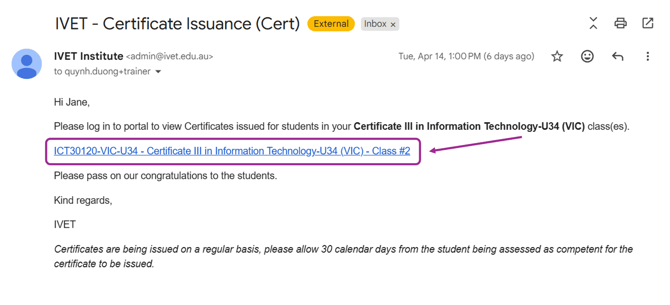
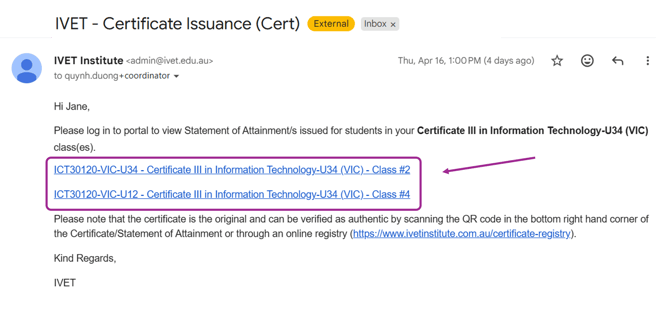
Email notifications will be sent to you twice weekly (typically every Tuesday and Thursday) when there are NEW student certificates available.
-
As a Trainer, you will receive notification of the classes that have NEW student certificates available. Simply click on the link, which will navigate you to the Awards tab, where you can view and download your Students' certificates:
-
As a Coordinator, you will receive notification of all classes at your school that have NEW student awards available. Simply click on the link, which will navigate you to the class' Awards tab, where you can view and download Students' certificates:
4. Common Questions & Support
Have a question or experiencing an issue? Check out our frequently asked questions below, or get in touch with IVET for further assistance.
Note: Certificates issued prior to 2026 will not be available in the Portal.
-
The link in the email doesn't work?
You must first be logged into the IVET Portal for the certificate link to work. If a link doesn't initially work, check and ensure that you are logged into the portal, and then try accessing the link again.
Your Student has completed the course but the certificate is not available?
-
First, ensure all units have been completed and that all results have been finalised.
-
Is it too soon? it can take up to 30 days from the completion of the student's final unit for their certificate to be issued.
-
Is there a problem with their USI? - a Student's USI must be verified and valid before a certificate can be issued. If they have not provided a verified USI, this will need to be resolved before they can access their certificate.
-
- Require further support for certificate issuance?
Firstly, a reminder to check that the Students' USI has been provided and that it is valid before submitting a certificate enquiry or request.
If you still need help:- You can email admin@ivet.edu.au
- In the subject line, please state: Certificate Request - [School name]
and include the following information:- Student’s full name (as it appears in the Portal)
- Class ID (located in the Portal)
- Qualification in which the student is enrolled
- You can email admin@ivet.edu.au
If you cannot find the information you need, you can email us at admin@ivet.edu.au, or call us on 1300 000 823.