![Ivet-Logo_1.png]](https://trainerportal.ivet.edu.au/hs-fs/hubfs/Ivet-Logo_1.png?height=45&name=Ivet-Logo_1.png)
There are two available export options for PDF file:
- Export Student Progress for the entire class
- Export Student Progress for a specific student within the class
Follow the steps below to generate the required PDF report.
1. Export Student Progress for the Entire Class
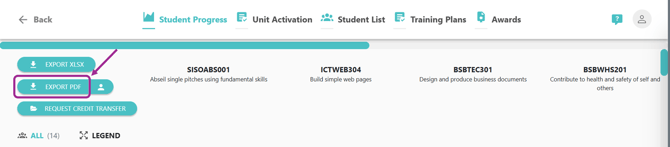
This option will export all Students (including withdrawn) into a PDF file format and provide you with an overview of student’s progression for the unit’s required assessments.
This report has a large file size and once you click on the Export PDF button, it will be sent to you via email.
Within the report:
- Students are listed vertically in the first column.
- Units are displayed horizontally across the report.
- Each unit contains the student’s overall assessment result.
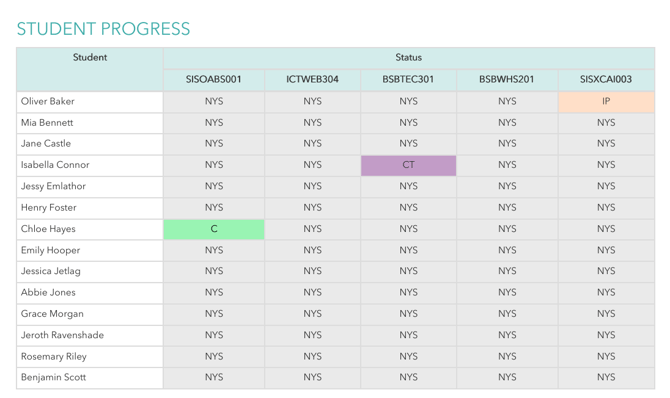
The table in the report shows groups of 5 units. A new table will be listed under the first for each subsequent grouping of 5 units. Depending on how many students and the number of units being completed, this report could be 2-page or more.
Note: On the last page of the report, you will find a legend for the acronyms used throughout the report.
2. Export Student Progress for a Specific Student Within the Class
This option allows you to export the Student Progress report for an individual Student within the selected class into a PDF file format. Similar to the full class export, the report provides an overview of the Student’s progression and assessment outcomes for the required unit assessments.
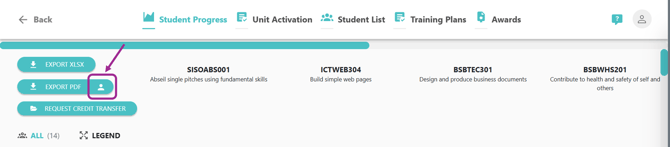
Firstly, you click on this icon  in the Student Progress tab.
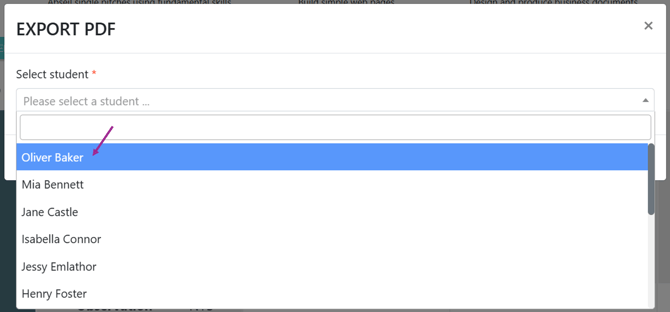
After that, a pop-up window will appear containing a drop-down list of Students within the class. From the drop-down list, select the Student whose progress report you wish to export.
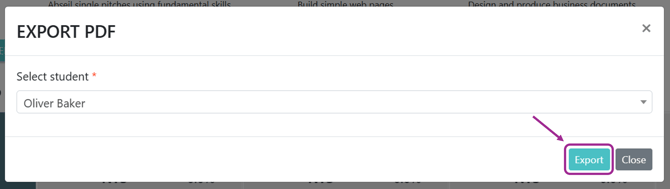
Finally, you click Export. Once clicked, the PDF report will be generated and sent to your registered email address.
The report will display the selected Student’s progress and assessment results for all relevant units. A legend explaining all acronyms used throughout the report is also included on the final page of the PDF file.